Tenant export and restore
Use Data Exports when you need a portable tenant package, recurring export delivery, or a controlled restore from a previous TvRMM export.
The customer-facing portal path is Administration → Tenant Settings → Data Exports. The deployed route is /ui/tenant/exports.
The final restore commit atomically replaces the tenant's current portable data with the validated package. Create and retain a pre-restore export, review validation results, resolve required mappings, and confirm the tenant slug before applying a restore.
Roles and effective role
TvRMM evaluates the user's effective tenant role, including any operating-as cap.
- Tenant admin or tenant owner: create redacted exports, review export activity, use ready Data Storage Connections for permitted redacted delivery, and configure redacted recurring schedules.
- Tenant owner: create and manage Data Storage Connections, authorize or reconnect Google Drive, choose the selected storage root, validate, disconnect, or delete a connection policy, create encrypted full exports, configure full-package recurring schedules, upload or select restore packages, resolve restore mappings, create the mandatory safety export, and commit the final restore.
- Operator and viewer: use normal role-scoped product workflows. Export, destination, schedule, and restore controls are not standard operator or viewer actions.
If a control is missing, confirm the selected tenant, assigned role, and operating-as role before escalating.
Package modes
TvRMM creates portable .tvrmm-export packages.
| Mode | Who can create it | Customer-facing behavior |
|---|---|---|
| Redacted package | Tenant admin or tenant owner | Includes portable tenant data with explicit markers where secret values are omitted. A later restore may require owner-provided mappings for those redacted values. |
| Encrypted full package | Tenant owner | Includes customer-defined secret variables and requires a package password. Use this mode for full tenant portability and pre-restore safety exports. |
Ordinary completed asynchronous export artifacts remain available from TvRMM for 72 hours. After the server copy expires, use a retained local download or a delivered Google Drive copy.
History coverage
Export history coverage controls how much provider-backed historical data is included with a package.
| Option | Customer-facing behavior |
|---|---|
| Current service scope | Exports the data currently retained by the hosted service. This is the normal portable package mode for routine exports and offboarding. |
| Linked customer-managed history | Records links to verified customer-managed history where the tenant has eligible provider-backed history. This preserves restore context without embedding every historical object in the package. It does not make hosted production customer-storage historical search available by itself. |
| Stream embedded customer-managed history | Streams verified provider-backed history directly into a self-contained package. This path does not retain a second downloadable server copy of the package; it retains job and integrity evidence only, and large provider-backed history can take longer. |
Manual export
- Open Administration → Tenant Settings → Data Exports.
- In Create export, choose Create redacted export or Create encrypted export.
- For an encrypted full package, enter a new package password and store it outside TvRMM.
- Watch Export activity for status and progress. Jobs move through queued/running states and finish as completed, failed, cancelled, or unavailable.
- When the package is completed, use Deliver to download it to the current device or send it to a ready Data Storage Connection.
Export activity shows the package filename, size, checksum evidence where available, expiry time, progress, safe failure reason, and delivery history.
Data Storage Connections and Google Drive
Google Drive delivery is configured through Policy Center → Data Storage Connections. Data Storage Connections are a Policy Center policy type: each configured connection owns its provider, account authorization, selected storage root, status, dependencies, and maintenance state.
Direct tenant owners create Data Storage Connections, authorize or reconnect Google Drive, choose the storage root, validate the connection, disconnect it, and delete it when dependencies allow. Tenant admins can use ready connections for permitted redacted export workflows, but they do not authorize or connect Google Drive accounts.
- Open Policy Center → Data Storage Connections.
- Create or open a Google Drive connection.
- Authorize or reconnect the Google account when needed.
- Choose the storage root that will hold TvRMM-managed export folders.
- Select Validate now and wait for the connection to show ready.
- Return to Administration → Tenant Settings → Data Exports and choose the ready connection for manual delivery or recurring schedules.
TvRMM uses the Google Drive drive.file scope for this workflow. The connection is scoped to files and folders selected through the connected account, not broad Drive browsing. Disconnecting a Data Storage Connection stops future TvRMM delivery through that connection; existing files in Google Drive remain in the customer's Drive unless the customer removes them there.
Google Drive export delivery requires encrypted packages. Keep the package password separate from the Drive account and share it only through your normal secure customer process.
TvRMM organizes manual and scheduled export packages under the selected storage root in managed Exports/YYYY/MM folders. Restore browsing starts at the managed Exports folder for the selected connection. Disconnecting or deleting a Data Storage Connection stops future TvRMM use of that connection, but it does not delete customer-held files from Google Drive.
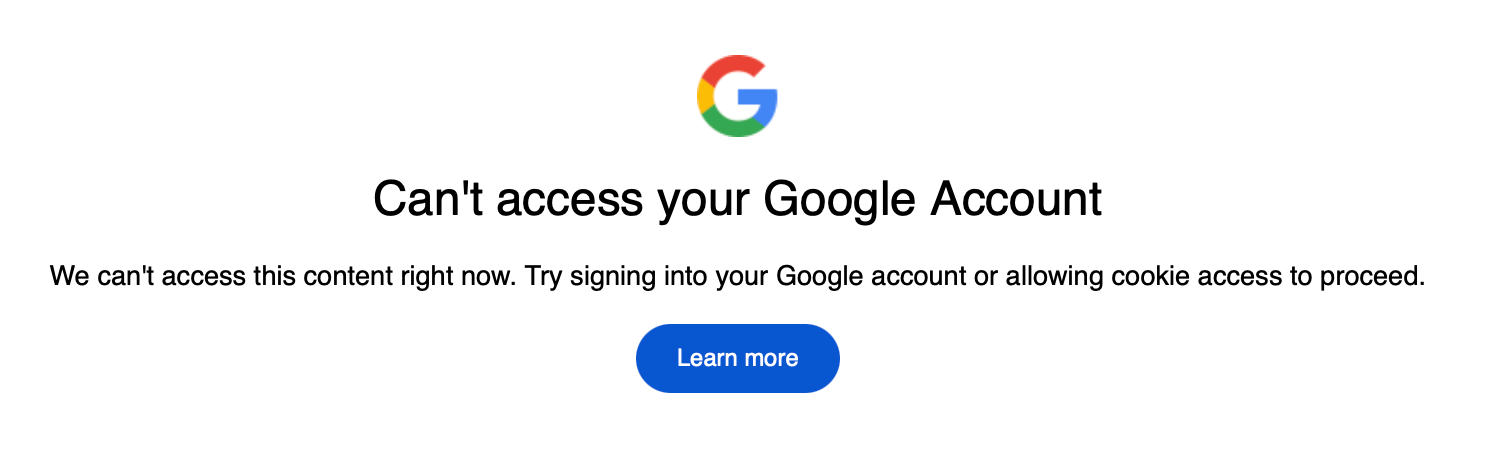
Embedded cloud-storage folder pickers depend on the storage provider's sign-in session. If the picker cannot see that session during folder selection, it may show a message such as "Can't access your Google Account" or ask for cookie access. Browser privacy protections, tracking prevention, content blockers, or third-party cookie restrictions can cause this prompt.
First confirm the provider account is signed in in the same browser session. Then allow provider cookies or pop-ups for the TvRMM session, or temporarily relax the relevant browser privacy protection, retry the picker, select the folder, and restore the privacy setting afterward. You can also use another supported browser to select the folder.
Safari example: open Safari Settings → Privacy, temporarily turn off Prevent cross-site tracking, reload or reopen the Google Drive folder picker, select the folder, then turn Prevent cross-site tracking back on. Routine automated exports use the configured connection and do not need the embedded Drive browser after the folder is selected. You may need to temporarily relax the browser setting again when you change the configured Drive folder or open the Drive browser to select a restore source. Menu names differ across browsers, so use the equivalent privacy or site-permission control for your browser.
Recurring schedules
Recurring schedules create one export package and try the selected Google Drive Data Storage Connections in ascending Priority order. Lower numbers run first. TvRMM moves to the next priority only after the current priority finishes without a successful delivery, and it stops the fallback chain after one connection succeeds.
- Prepare at least one ready Google Drive Data Storage Connection.
- In Scheduled exports, choose the package mode, cadence, time zone, and local time. Select one or more ready Data Storage Connections and assign each a Priority from 1 to 1000. Use distinct priorities when you want an unambiguous primary and fallback order.
- Enter the recurring package password.
- Save the schedule.
Supported cadence options are hourly, daily, weekly, and monthly where the portal exposes the matching fields. Schedule cards show mode, cadence, destination status, retained Drive file count, server copy retention, next run, last run, recent delivery runs, and recent export runs.
Tenant admins can manage redacted recurring schedules. Tenant owners are required for encrypted full-package schedules. Every completed scheduled package keeps the TvRMM server copy for 72 hours, and the Drive retention setting controls how many delivered Drive files TvRMM keeps for that connection.
Use Run now to start an enabled schedule outside its normal cadence. Use pause, resume, update, or delete when a connection changes, a password must rotate, or a schedule is no longer needed. Updates and deletion are blocked while an export or delivery is active.
Delivery history and errors
The History tab keeps export, delivery, and restore evidence after active work leaves the main activity view. It supports status filters and reviewed/unreviewed filters. Tenant owners can mark terminal failures reviewed one at a time or mark the visible terminal failures reviewed as a batch. Reviewed evidence remains reviewable, and new failures alert again.
Delivery history records each destination attempt and its status. Typical recovery actions are:
Recent runs and delivery logs record every attempted destination. If the primary destination fails, review its safe failure reason and the status of the next fallback. If every destination fails, the server copy remains available for 72 hours for manual download or another delivery attempt.
- reconnect Google Drive when the account or folder is unavailable;
- choose a new Drive folder when the selected folder was removed or access changed;
- create a new encrypted package when the completed server copy expired;
- reduce package scope only by using the available package modes and connections, not by editing package contents manually;
- contact support when a safe failure message does not identify a customer action.
Export by email is not supported. Tenant export packages are too large for email to be a viable delivery channel. Ordinary product email, such as account or support email, is unrelated to tenant export delivery.
Agent-based export delivery is retired. Use download, Data Storage Connections, schedules, and delivery history instead.
Restore sources
Tenant restore accepts portable .tvrmm-export packages from:
- This device: choose a local package and upload it in the portal.
- Google Drive: choose a package from the managed Exports folder on a ready Data Storage Connection.
Only tenant owners can start restore jobs. The package must be a TvRMM tenant export package. Encrypted packages require the package password. Redacted packages may require owner decisions for omitted values before validation can complete.
Restore flow
- Open Administration → Tenant Settings → Data Exports.
- In Restore tenant data, choose This device or an available Google Drive source.
- Select a
.tvrmm-exportpackage. - Enter the package password if you have it. If not, upload first and enter it when TvRMM asks.
- Select Upload and validate.
- Review validation progress and any safe errors.
- If TvRMM asks for redacted-value handling, choose whether to reuse a compatible current value, enter a replacement, or leave the value null. Download the missing-value checklist when you need an offline review.
- When validation is ready, create the mandatory pre-import safety export with a new safety-export password.
- Satisfy the external safety evidence gate before final apply:
- preferred path: deliver the encrypted safety package to managed storage and let TvRMM verify the delivery, package size, checksum, readability, and connection state immediately before apply;
- alternate path: download the exact checksum-verified encrypted safety package, retain it outside TvRMM, store the password separately, and record the owner attestation. The optional retention label must be short and non-sensitive, not a filesystem path or provider location. Downloading the package by itself does not unlock final apply.
- Review the final state and confirmation prompt.
- Type the required confirmation and select Commit restored tenant only when you are ready to replace current portable tenant data.
You can cancel a restore before the final apply step. Cancellation before apply leaves the current tenant state active.
Expected results
Before final apply, uploaded restore data is staged separately in encrypted staging and the existing tenant remains active. If validation fails, the prior tenant state remains active and TvRMM shows a safe error. Upload a corrected package or contact support with the visible job status.
During final apply, TvRMM performs a serializable atomic switch and exposes either the complete old state or the complete restored state. After a successful commit, the imported tenant state is active and restore evidence remains visible. Endpoints absent from the package retain only their secure identity and return as new endpoints on their next authenticated heartbeat.
After commit, do not treat restore as a partial undo tool. Use the mandatory safety export or another retained export package if you need to restore again. Escalate to support when validation errors, missing-value mappings, Drive access, or post-restore endpoint behavior do not match the visible status.